Install and activate
This page covers installing the free version, installing Design Upgrade Pro, and activating your Pro license key. Only Pro needs a license key.
Requirements
- WordPress 6.0 or later
- PHP 7.4 or later
- LearnDash, installed and active
- An administrator account on your site
If LearnDash isn't active, Design Upgrade Pro deactivates itself and shows a message asking you to activate LearnDash first.
Install the free version
- Log in to WordPress as an administrator.
- Go to Plugins > Add New Plugin.
- Search for Design Upgrade for LearnDash.
- Click Install Now, then click Activate.
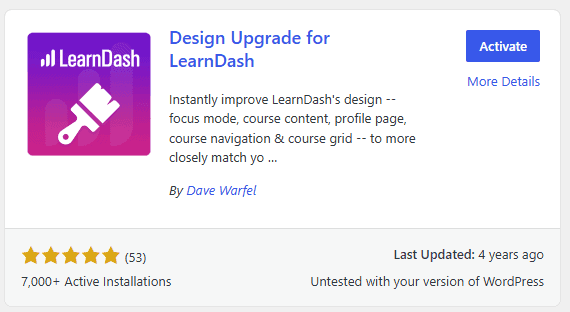
That's it. The free version has no settings, so your LearnDash pages update as soon as the plugin is active.
If your site uses page caching, clear the cache to see the changes.
Install Design Upgrade Pro
Download the plugin
Download the plugin's .zip file from your Tangible ONE account. Don't unzip it.
Upload and activate
- Log in to WordPress as an administrator.
- Go to Plugins > Add New Plugin.
- Click Upload Plugin at the top of the screen.
- Click Choose File and select the
.zipfile you downloaded. - Click Install Now, then click Activate Plugin.
If the free version is installed, deactivate and delete it now. Pro includes everything the free version does, and the two don't work together.
Activate your license
Your license key turns on plugin updates and support. It's in your Tangible ONE account and starts with TGBL-.
The setup wizard
The first time you activate Pro, WordPress opens a short setup wizard.
- Welcome: paste your key into Your license key and click Get started. When the key is accepted, you'll see "Your license is valid." If you're building the site for someone else, tick I am installing this for a client. License and renewal news then goes to the account owner by email instead of appearing in this dashboard. It covers every Tangible plugin on the site, and you can change it later in Settings.
- Done: click Open the Customizer to start designing.
You can leave the wizard with Exit setup. Until setup is finished, a notice in the dashboard reminds you to add your license key; the Setup link under the plugin on the Plugins screen takes you back.
Version 3 doesn't read license keys from the old escapecreative.com store. Enter the Tangible ONE key from your account instead.
Manage your license later
Go to Settings → Design Upgrade Pro for LearnDash and open the License tab. You can also click License Key under the plugin on the Plugins screen. The status next to License Key shows whether your key is Valid.
- To activate a key, paste it in and click Activate.
- To free the key for another site, click Deactivate. Deactivate & Clear License also removes the key from this site.
Licenses count live sites only, so you don't need to deactivate when you copy a site to staging. Deactivate when you:
- move your site to a new domain
- retire a site that no longer needs updates
- want to use the license on a different site
Not getting updates after a domain change? See Update issues.
Next steps
Before you change any settings, read what to do before you customize LearnDash. It covers one LearnDash setting you need to reset first and the easiest way to open the Customizer.