Before you start
Two things make Design Upgrade Pro easier to work with: clearing LearnDash's own color settings, and opening the Customizer on a LearnDash page so you can preview your changes. Take care of both before you change any settings.
These steps apply to Design Upgrade Pro. The free version has no settings, so there's nothing to set up.
Reset LearnDash's color settings
LearnDash has its own color settings. When they're set, they can override Design Upgrade Pro's colors. If you've never changed them, skip this step.
LearnDash settings
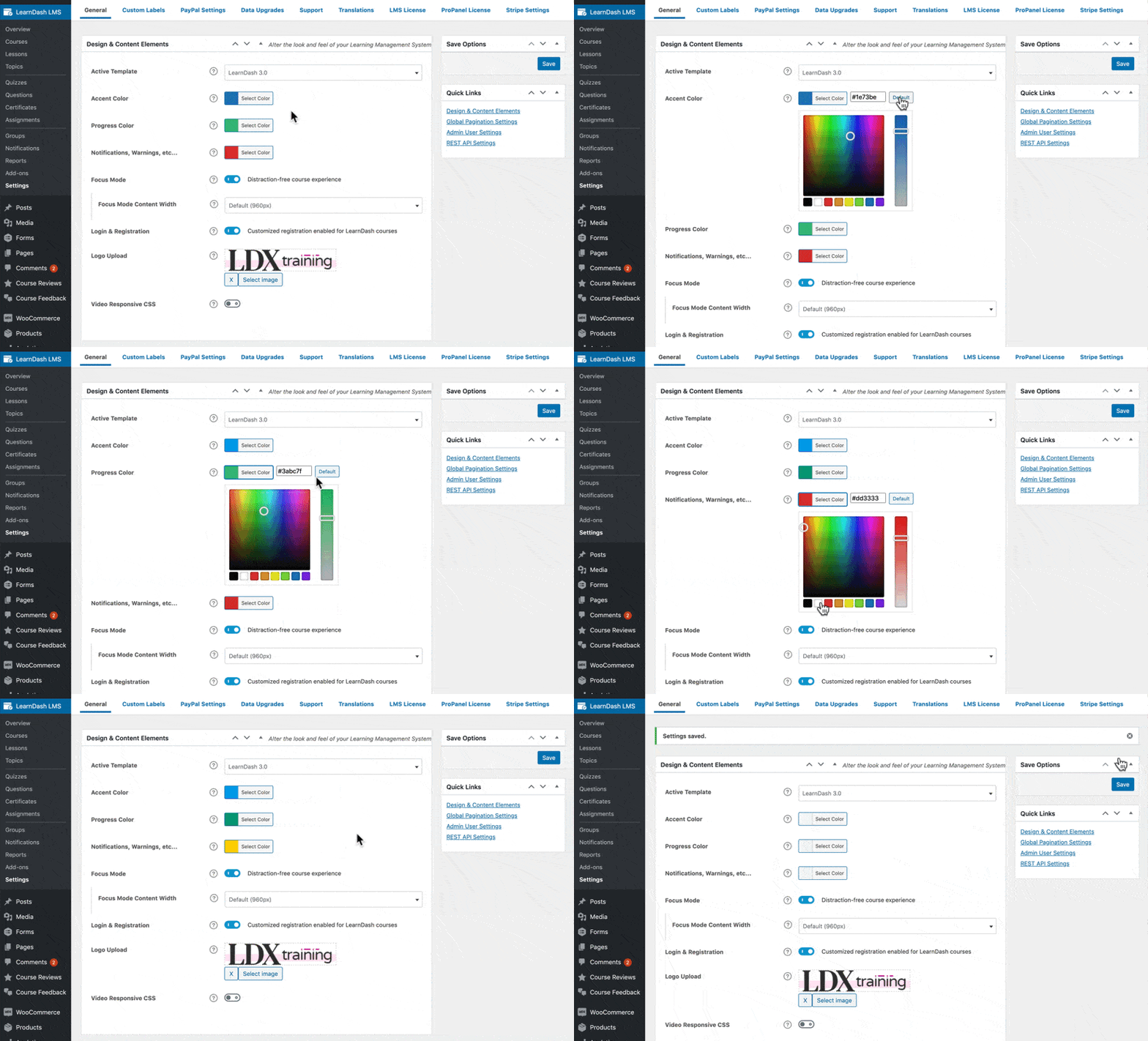
- Go to LearnDash LMS > Settings.
- Find the Design & Content Elements section.
- For each color option, click Select Color, then click Default.
- Click Save.
LearnDash Styles in the Customizer (LearnDash 4.15 and higher)
LearnDash 4.15 added its own LearnDash Styles panel to the Customizer. Design Upgrade Pro overrides these settings in most cases. If one of Design Upgrade Pro's colors isn't working, check this panel for a color that's been set.
To clear a color, click Select Color, click Default, then click Publish.
Open the Customizer
Every Design Upgrade Pro setting lives in the WordPress Customizer, in the LearnDash Design Upgrade panel. There are three ways to get there.
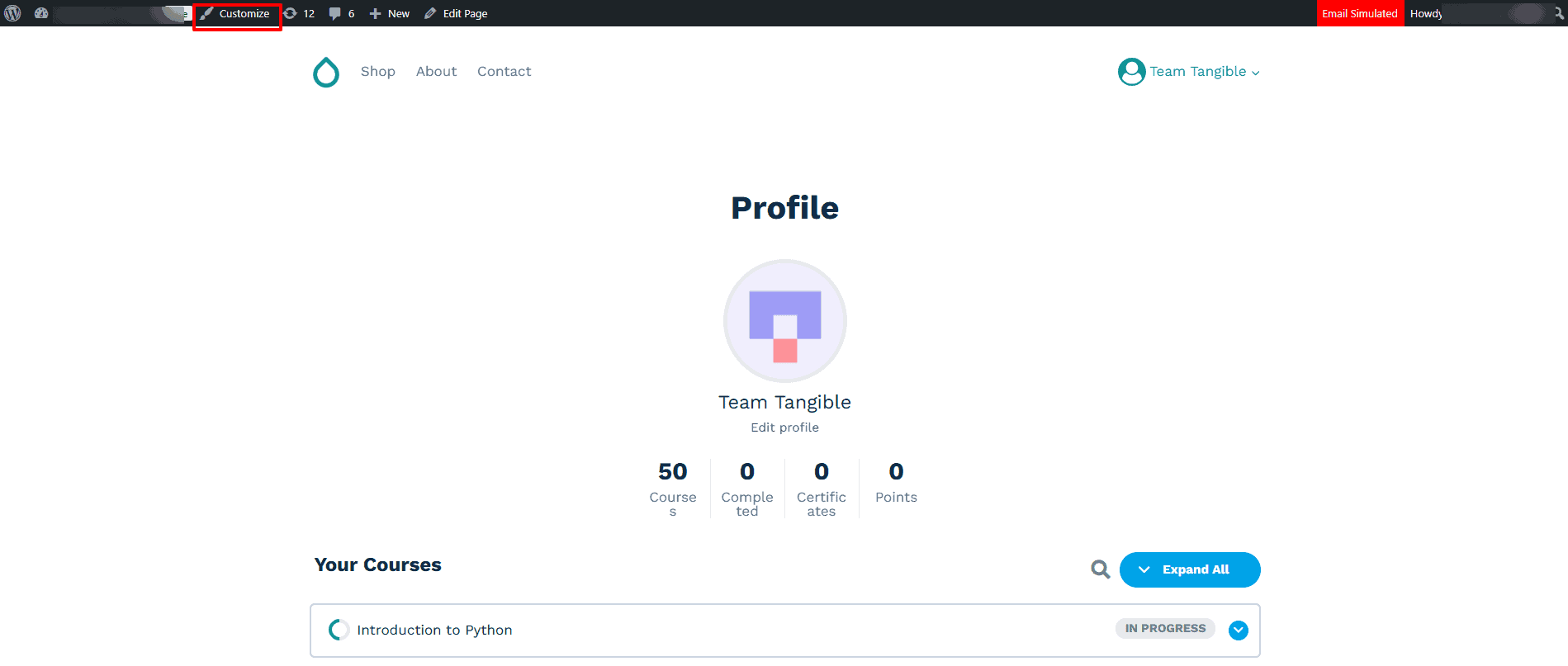
From a LearnDash page (recommended)
This is the best option because the Customizer opens with a LearnDash page already in the preview. You see your changes as you make them.
From Appearance > Customize
- Go to Appearance > Customize.
- Open the LearnDash Design Upgrade panel.
The preview starts on your homepage. Browse to a LearnDash page inside the preview to see your changes.
From the Plugins page
On Plugins > Installed Plugins, click the Customize link under Design Upgrade Pro. It opens the LearnDash Design Upgrade panel directly.

Previewing the login popup
The login and registration popup only appears for logged-out visitors, but the Customizer requires you to be logged in. That means you can't preview it in the Customizer. See the login and registration popup settings for workarounds.
Next steps
Ready to set up your design? Follow the Design Upgrade Pro quick start guide to set your colors and borders in a few minutes.